
Knowledge base
Connecting an XJC Force/Torque Sensor to Fairino Cobot
This article will cover the steps needed to connect your XJC force/torque sensor to the end of a Fairino Cobot arm
Hardware required:
- 1 XJC force sensor
- 1 Fairino Cobot
- 1 computer with ethernet connection to Control box/button box OR 1 teach pendant
Steps to configure:
Step 1)
Navigate to your Fairino Web App by typing your robot's IP address into your computers URL or via the teach pendant
Step 2)
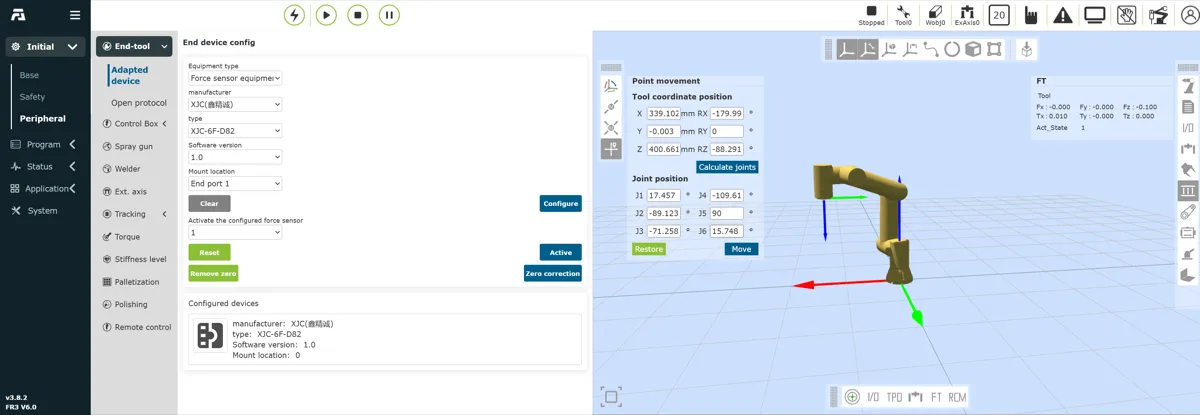
Select Initial -> Peripheral -> End-tool -> Adapted device
From here use the table below for your values in the drop downs (as shown in the figure below
Equipment type | Force Sensor Equipment
Manufacturer | XJC
Software version | 1.0
Mount location | End point 1
Step 3)
Now, press configure -> active -> set zero
Sometimes, you will get an error message saying "Coordinate system of FT not set to tool"
To amend this, click on the FT icon at the bottom of the web app and select "tool" as the target coordinate system. Now, you should see your force values in the Force/Torque monitor tab on the right of the web app (shown in figure above)
To zero the force sensor, you can use the "zero correction" button in the "Adapted device" tab or use FT commands in your code. For more details on programmatic ways to control your force sensor, reference the documentation in the Fairino Documentation Page
Translated from Fairino documentation. For anything safety-related, check against the equipment manual and with your advisor before moving the robot.
Still stuck?
Write to us with the serial number and what you already tried. Someone who has installed these units answers.
Request support →